
How to send WhatsApp notification automatically when order is "Out for delivery" ?
You can start sending various automated WhatsApp notifications with the help of Shopify Flow and Ctx: WhatsApp Chat + Marketing (Shopify App)
Here is how you can setup the Shopify Flow to start sending an automated WhatsApp message when Order status changed to "Out for delivery" to notify customer that your order is about to be received today / soon. It will help to reduce RTO, because customers will be aware and ready to receive their order.
💡 See how - How to apply for WhatsApp Business API ?
Submit WhatsApp Message Template:
- Open Chatix: WhatsApp Marketing + Chat app installed on your shopify store.
-
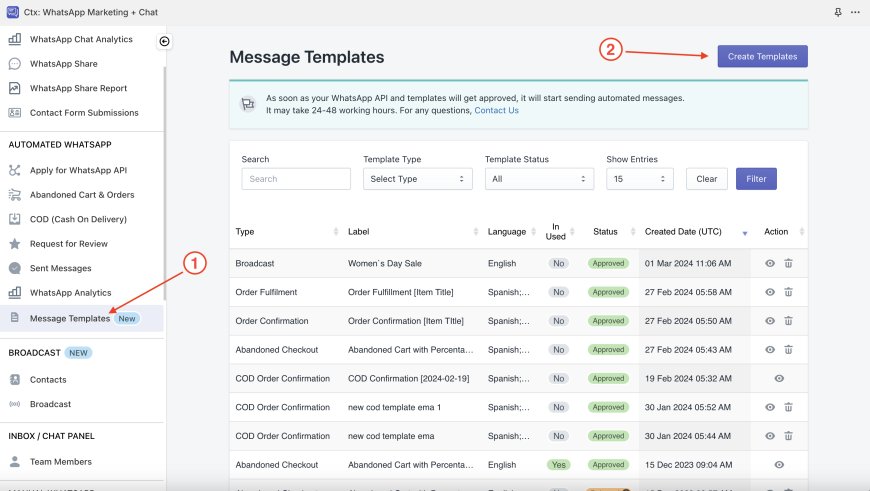
As shown in the screenshot below, find the menu "Message Templates" and on that page "Create Templates".
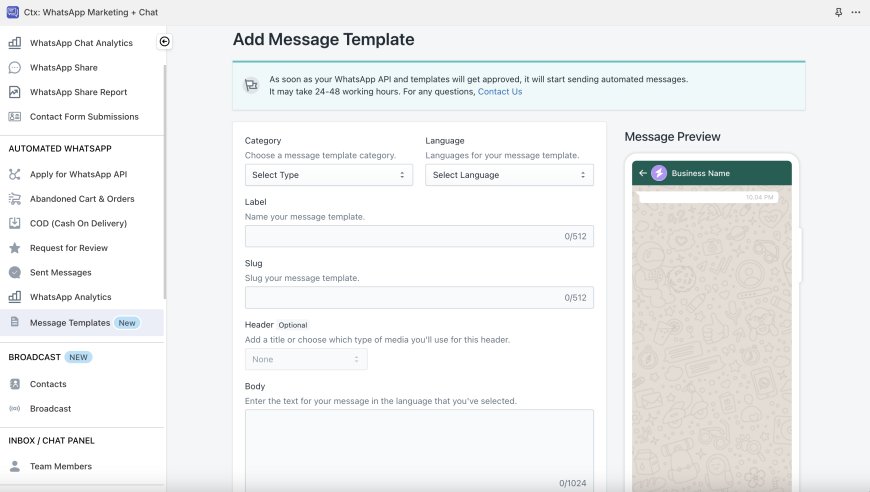
- On create template page, you will be able to find all available category of automations,
choose from the given automation and you can proceed for rest of the fields.
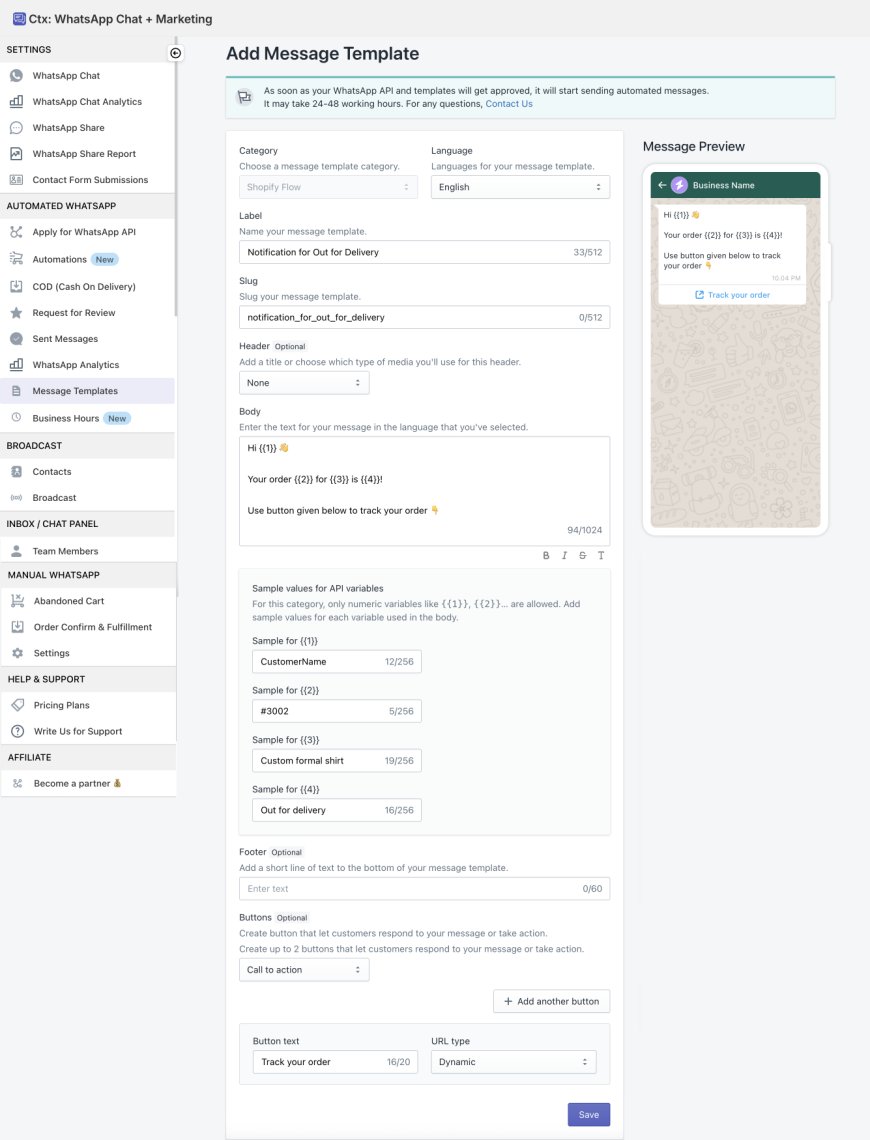
- To create a template for Shopify Flow, select the category "Shopify Flow" and fill the details in other fields for the template.
refer the screenshot given below,
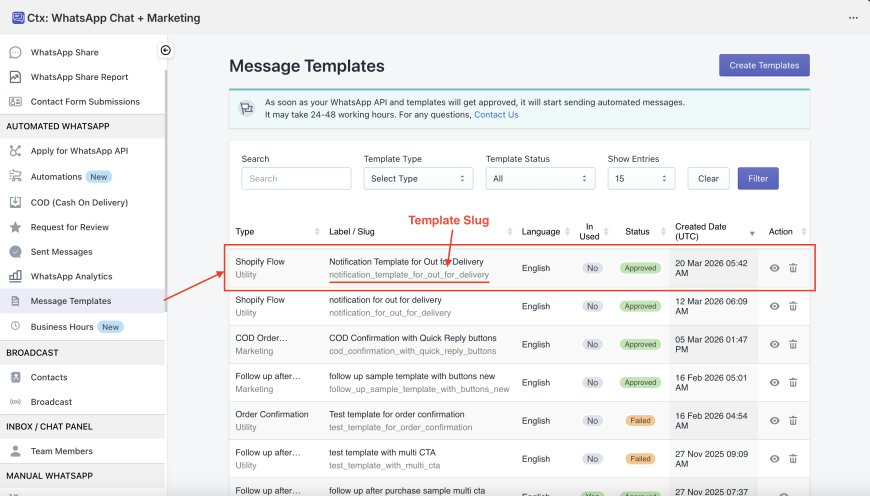
- Once template will be submitted, it will show you in the list of templates. Once template will get approved by Meta, you will see "Approved" status here in the list.
Refer the screenshot attached, see where you will be able to find the Template Slug, which will required later upon creating Shopify Flow.
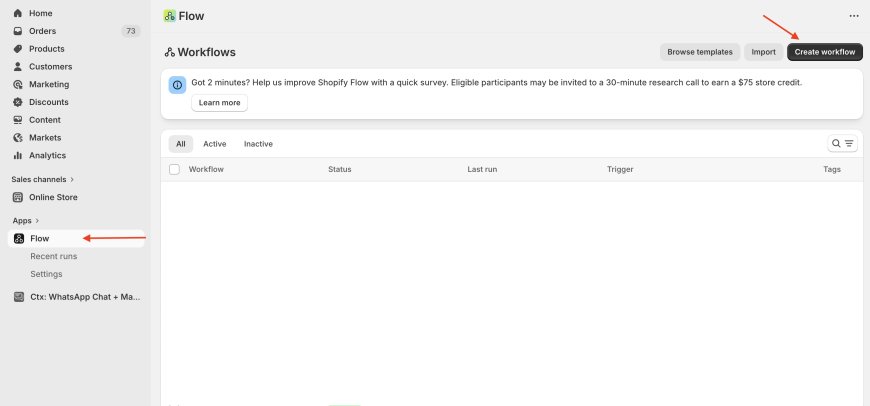
- Now, Open Shopify Flow app available in your Shopify Store admin > Apps. Click on "Create Workflow" as shown in the screenshot below.
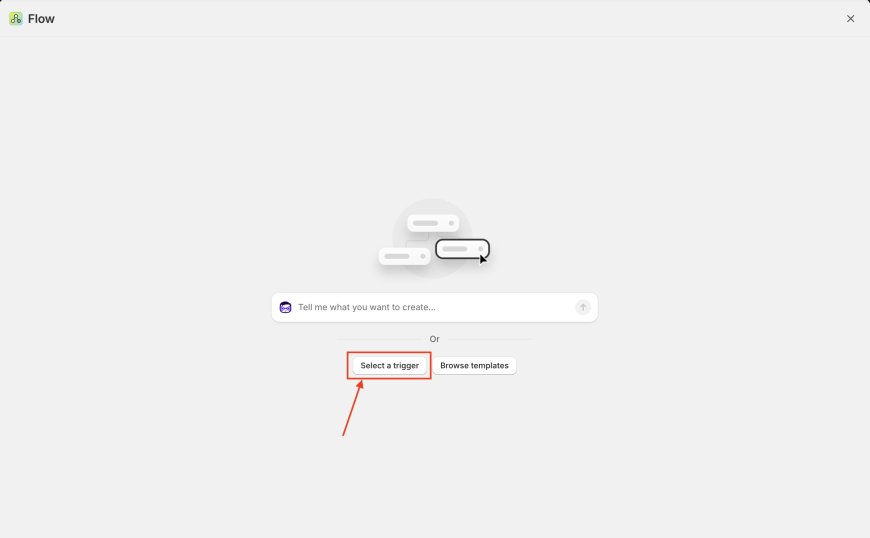
- After that you will get a screen to "Select Trigger" or choose prebuilt template. Here we will proceed with Select Trigger.
There search for "fulfilment event created" and select that event from the search result you get as shown in the screenshot given below,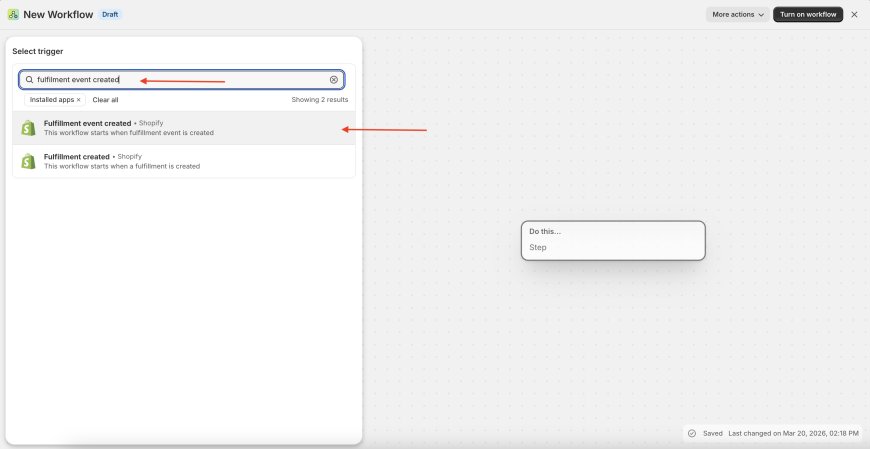
Then after proceed to select "Condition"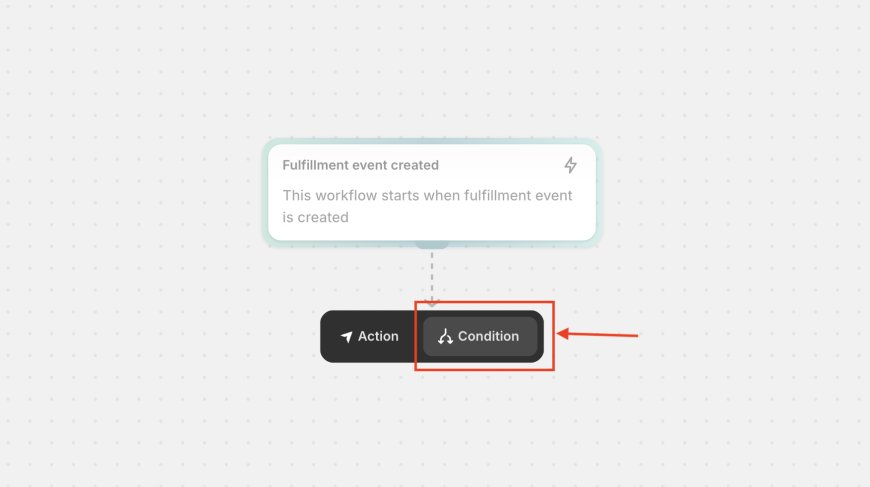
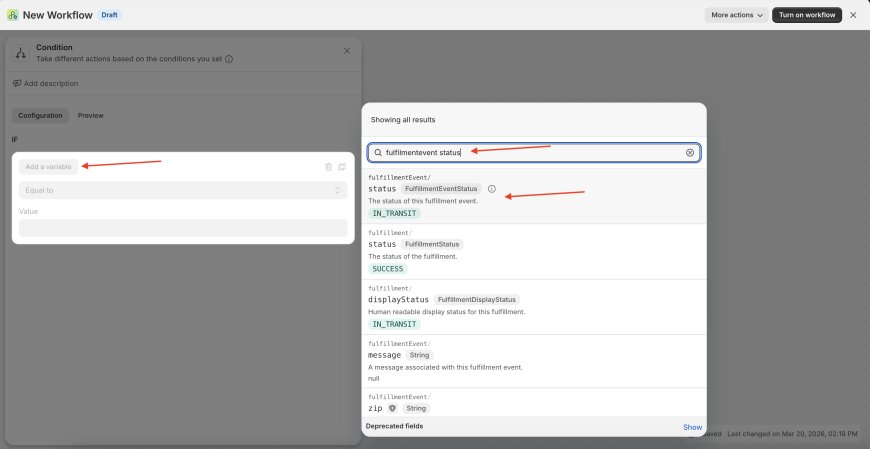
Click "Add a variable" and search for "fulfillmentevent status" and then select "fulfillmentEvent" > "status"
After that choose Equal to in the given select box and then select OUT_FOR_DELIVERY.
Note: Here you can select any Status for which you want to trigger the automated WhatsApp notification, and create as many flows like this one.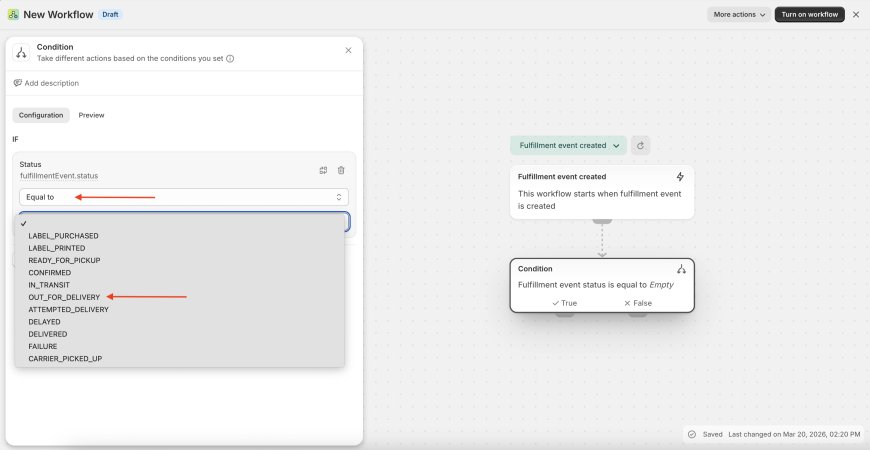
- Then after select an "Action" for True.
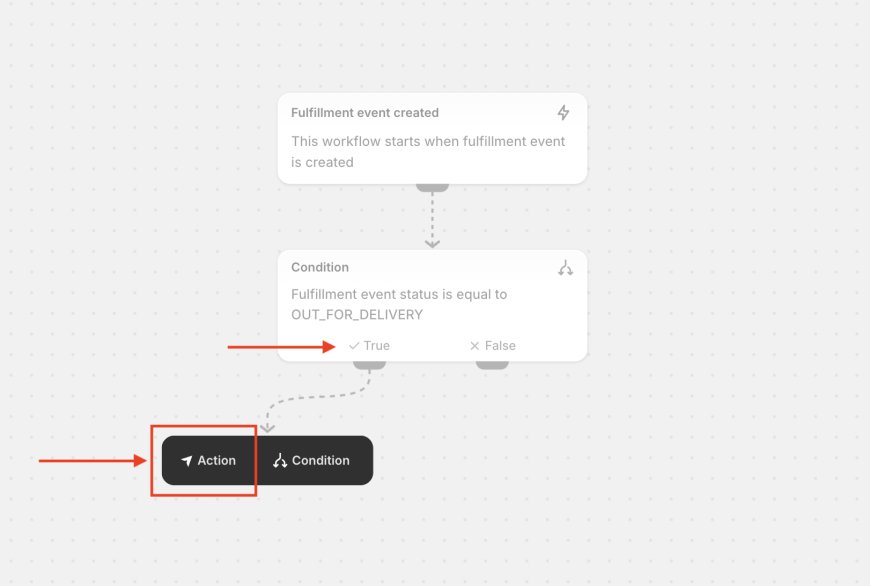
Search WhatsApp > Select "Send a WhatsApp message via Chatix"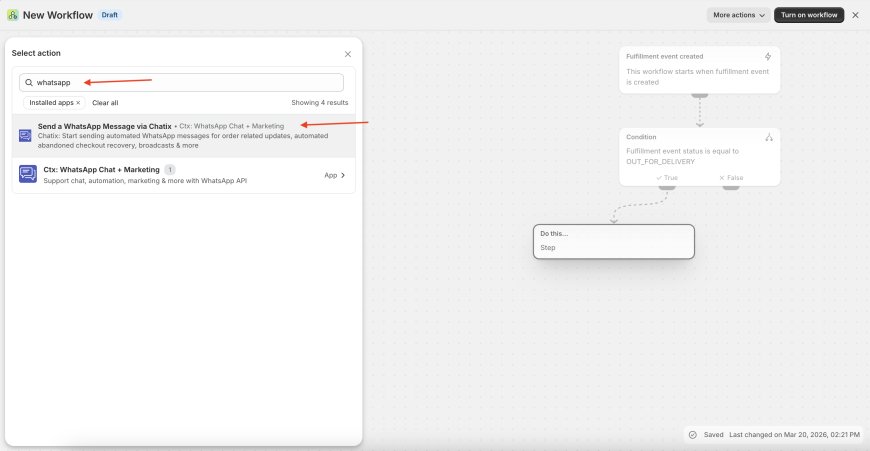
- Copy and paste the Template Slug (as shown in Step 5) from the WhatsApp Templates list in the application.
Then, use the “Add Variable” option for the remaining fields and assign values to the variables such as {{1}}, {{2}}, {{3}}, and so on. Important:
Make sure to select variables only for the placeholders used in your template.
For example, if your template contains 4 variables, assign values only for {{1}}, {{2}}, {{3}}, and {{4}}. Leave any additional fields empty.
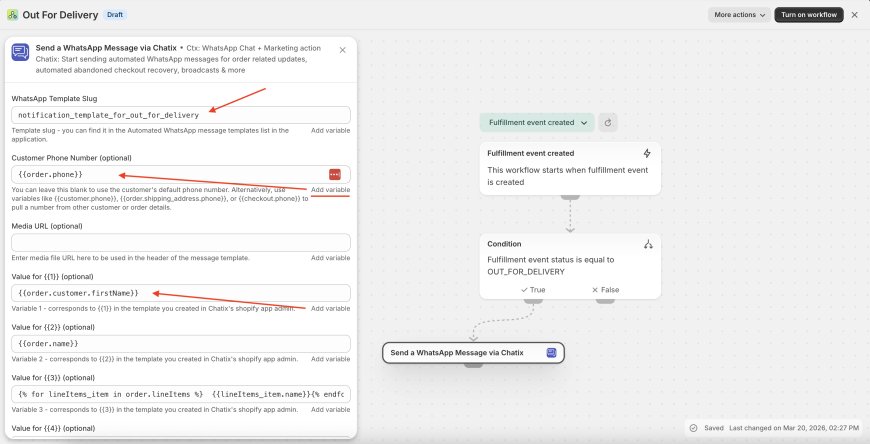 Done. Your workflow is now ready to run automation. Make sure to activate the workflow, as its status is set to Inactive by default.
If you need any assistance, feel free to reach out via our support email or use the WhatsApp chat button available within the application.