
Return & Exchange Order Process (by Admin) - How can I Process my Return & Exchange Orders ?
You can manage your Return Orders in Return Requests Section.
1. Pending Requests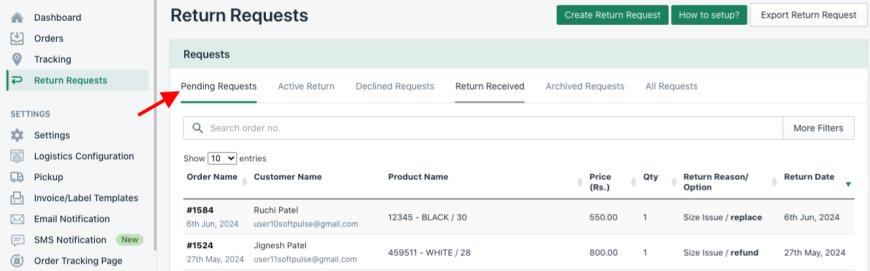
- Once customer sends a Return request it’ll be visible under Pending Request tab along with Details like Return Reason, Return Option, Refund Mode or Exchange Product selected by Customer, Customer Note, Proof Image etc. which is visible in the Detail View by clicking on the Order
- Here you you can Approve, Deny or Delete the request.
- Approve-
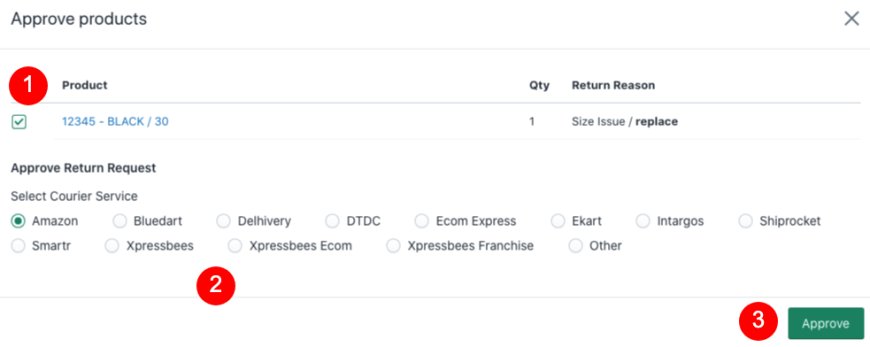
- Click on the Order > Click on Approve Button > Select Items you want to Approve (if Multiple Items) > Select Courier, Package & Delivery Location details > Click on Approve button
- On Approval the Order is Scheduled for Pickup from the Customer's Address by your chosen Logistics & a Tracking no.(AWB) is generated along with a Return Request Accepted Email sent to the Customer & the Order moves to Active Return Tab
- Deny-
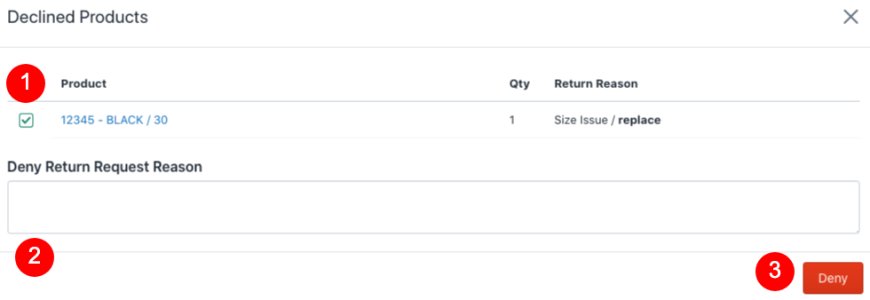
- Click on Deny Button > Select Items you want to Approve (if Multiple Items) > Add Reason to Decline the Request > Click the Deny Button
- On Denying a Return Request Rejected Email is sent to the Customer & the Order moves to Declined Requests Tab.
2. Active Return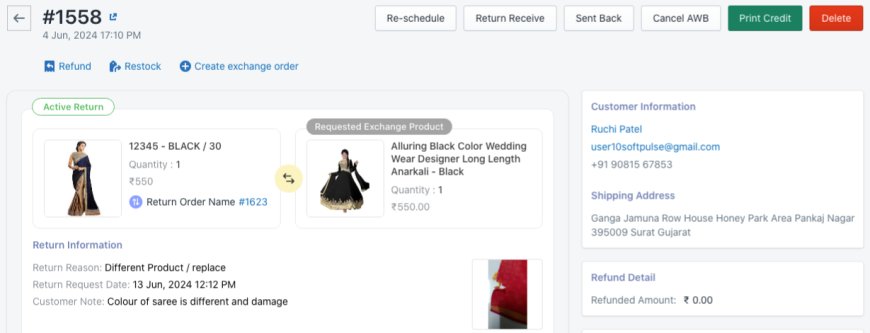
- All your Approved Return Orders will be visible in Active Return Tab along with their Tracking no. & Logistics
- You can Track your Return Orders by clicking on the Tracking no. redirecting you to the Logistic's website
- After Receiving these Orders you can mark them as Received from Return Received button
- Also You can Refund the Customer, Restock the Products, Create Exchange Order, Giftcard & provide StoreCredit to the customer, Reschedule the Return Order Pickup, Send the Return Order back to Customer if no issue found from Sent Back button, Cancel the Return Shipment from Cancel AWB button from the Detail View
- Note : Giftcard & Storecredit providing Process is Manual, it should be alloted to Customer by Store owner in the Shopify Admin Panel.
3. Declined Requests
- All your Denied Return Orders will be visible in Declined Requests Tab along with their Declined Reason
- You can also Approve those Orders back from here if Required.
4. Return Received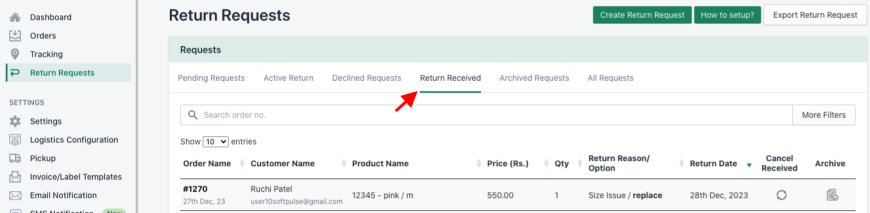
- All your Return Received marked Orders will move to Return Received Tab
- You can also Refund, Restock, Create Exchange Order, Giftcard & provide StoreCredit to the customer, mark it as Sent back & Print Credit Note in this Tab
- Other than that you can Cancel Return Receive if you marked it Return Received by mistake or You can Archive that Order if all the Return Process is Completed which will move the Order to Archived Requests Tab
5. Archived Requests
- All your Archived Return Orders will be visible in Archived Requests tab
6. All Requests
- All your Return Orders will be visible in All Requests Tab with their Requests Status as Pending, Active, Declined, Return Received & Archived
> Other Features
- Create Return Request
- You can Create Return Request Yourself from ILS Panel through Create Return Request button if Customer is not able to Create one by themselves
- Add filter
- You can filter different Tabs according to Order Date, Return Date, Customer Name, Product Title, Return Reasons & Return Option
- You can filter different Tabs according to Order Date, Return Date, Customer Name, Product Title, Return Reasons & Return Option
- Filtered Report Export & Print Options
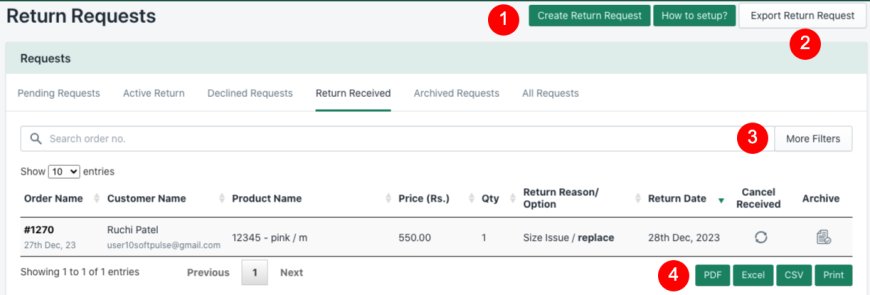
- You can Export your filtered Reports in PDF, Excel & CSV format as well as Print them through their respective PDF, Excel, CSV & Print buttons
By managing Return Orders effectively, you can create a positive experience for your customers even when they encounter issues with their purchases. This way, you can enhance customer loyalty, reputation, and overall business success.